 Orby
OrbyWINDOWS PRODUCTIVITY · 22 OCTOBER 2026 · BY ABID
6 Windows Apps That Fixed Problems I Didn’t Know I Had
Useful Windows apps for the small frustrations that quietly take up your day.
Some computer problems get so familiar that they stop looking like problems. You resize the same three windows every morning. Email yourself a file because your phone is right there but your PC might as well be in another country. Open a browser tab for a timer, then forget which tab it was.
None of that feels dramatic. It just adds a few extra steps to the day.
The best Windows apps are often the ones that remove those steps. This list brings together six Windows productivity apps for finding files, arranging windows, keeping small tools nearby, sending things between devices, explaining something with a screenshot and controlling audio.
Five are free. One is a paid desktop companion. Each has a clear job.
1. PowerToys
The problem: your windows never quite stay where you want them.
A browser on one side. A document somewhere behind it. A chat window covering the paragraph you were trying to read. Windows Snap already helps, but a layout that suits one task can feel cramped for the next.
Microsoft PowerToys includes FancyZones, which lets you define your own window layouts. Give your editor most of the screen, leave a narrow column for reference material and keep a smaller space for messages. Drag windows into those zones instead of adjusting the borders again.
It also includes useful tools beyond window management: Color Picker, Keyboard Manager and PowerRename. You can enable the utilities that fit your work.
Start with FancyZones. A small layout change can be enough to make a busy desktop easier to navigate.
Price: free and open source. Explore PowerToys ↗. Microsoft’s FancyZones guide explains the layouts and shortcuts.
2. Everything
The problem: remembering a file exists is easier than remembering where it lives.
You know the invoice had a client name in it. The PDF might be in Downloads. Or Documents. Or a folder inside another folder called Final.
Everything is a Windows file search app from voidtools. It builds an index of file and folder names, then narrows the results as you type. That makes it useful when you remember a fragment of a filename and want to get straight to it.
Search for a name, add a file extension or narrow the folder. Keep the search simple first.
There is a distinction worth knowing: Everything indexes names, not the contents of every document. Its separate content search reads files and can be slower. For the everyday task of finding a misplaced file by name, that focused approach is the point.
Price: free. Get Everything ↗. See the developer’s FAQ for indexing and setup details.
3. Orby
The problem: the smallest tasks keep sending you into another app.
A focus timer. A sentence you need to save. The track playing in the background. An AI allowance you meant to check before starting another task.
Orby brings those little jobs into an animated, expandable orb on your Windows desktop. Click it to open a dashboard, use a tool and return to a compact view. You can enable hover expansion if that fits your routine better.
There is more here than a good looking desktop widget:
- Pomodoro, countdown and stopwatch tools, plus water reminders.
- Notes, a scratchpad, simple drawings and a file shelf.
- Media controls for supported Windows players.
- AI Playground for supported Codex, Claude Code and Antigravity installations, with remaining allowance where the provider reports it.
- A calculator, unit conversions, weather and available PC readings.
The closed orb is the useful part when you want less on screen. Choose a supported activity, such as a timer, media or reported AI usage, and keep that reading nearby. The most recent “Show on orb” choice takes its place.
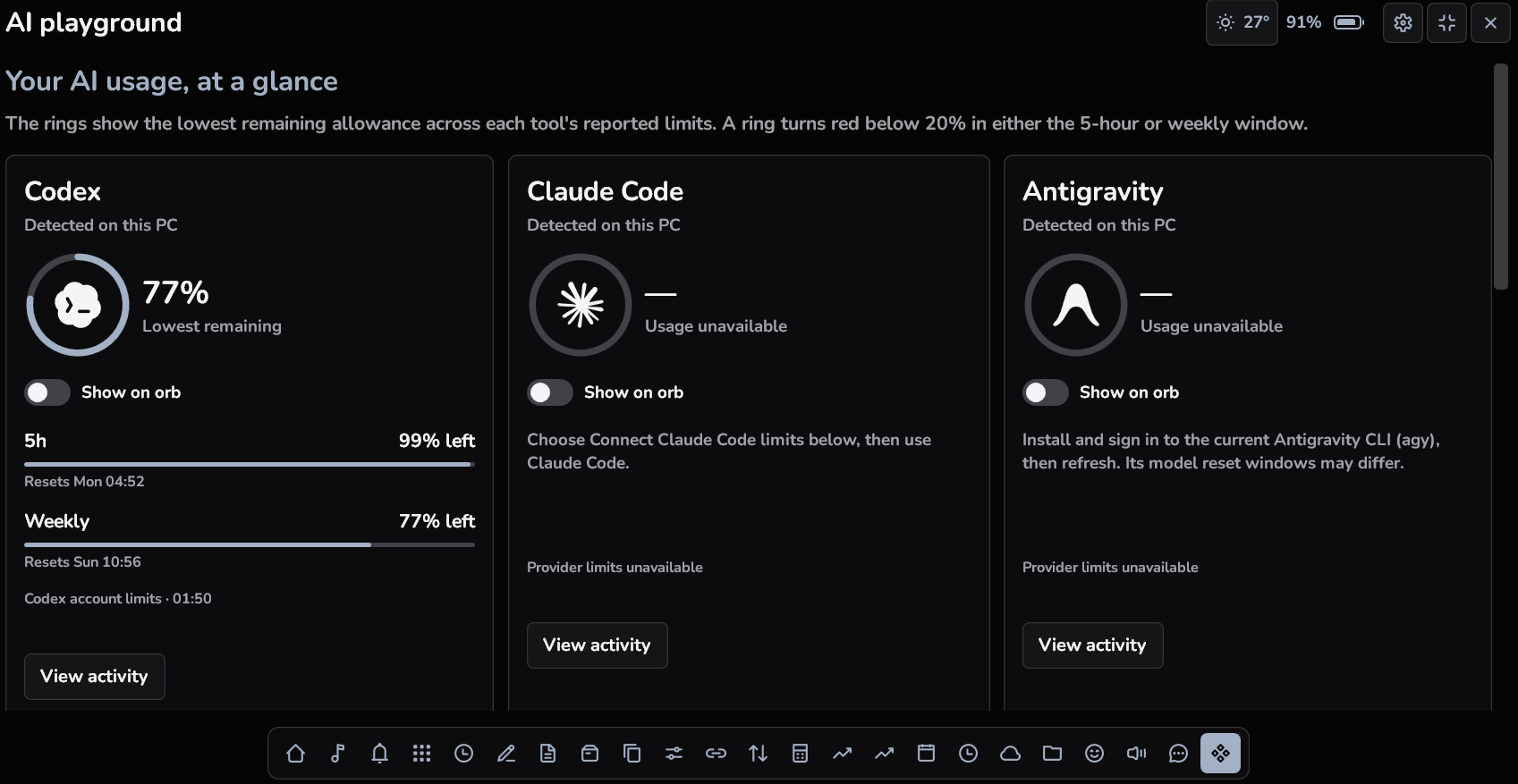
If you like Mac notch apps but use Windows, this is a similar idea without needing a physical notch. Move the orb, change its size, choose a dark or light appearance and adjust the colours and font. There is a separate Windows and Mac notch app comparison if that is the workflow you are after.
Price: one time purchase. The website launch offer is $4.99 for the first ten qualifying purchases, then $9.99; Gumroad is $6.99. Direct licenses cover up to three active PCs. Check current availability and taxes at checkout. Windows x64 is required; see the PC requirements. Direct downloads exclude Windows notification mirroring. Explore Orby ↗
4. LocalSend
The problem: sending a file between your own devices should not require a workaround.
There is something ridiculous about uploading a photo to the internet just to download it on the computer sitting next to your phone.
LocalSend transfers files and text between nearby devices on your local network. Install it on both devices, open the app, select what you want to send and choose the receiving device. There is no account to create.
It supports Windows, macOS, Linux, Android and iOS. That makes it useful in a mixed household: a Windows laptop and an iPhone can use the same tool as an Android phone and a Mac.
The boundary is simple too. This is local network sharing, not a service for sending files to someone in another city. Both devices need to be able to reach each other on the network.
Price: free and open source. Get LocalSend ↗
5. ShareX
The problem: a screenshot often needs one more step before it is useful.
You capture an error, then need to add an arrow. Or hide an email address. Or record the three seconds that show exactly what went wrong.
ShareX combines screen capture, annotation, screen recording and GIF recording in a Windows utility. Capture a region, mark the important part and save or copy the result. Its workflow settings let you choose what happens after a capture.
Windows already includes a capable Snipping Tool. ShareX becomes interesting when you repeat the same editing and sharing steps, or want more control over them.
Start with one shortcut and a local save workflow. Uploading is optional; check the configured destination before sharing a capture that contains private information.
Price: free and open source. Get ShareX ↗
6. EarTrumpet
The problem: the app that is too loud is rarely the only app making sound.
A video starts in the browser. Music is already playing. Your call needs to stay audible. Lowering the master volume turns down the thing you wanted to hear as well.
EarTrumpet puts a standalone volume mixer in the Windows system tray. Adjust individual app levels, manage the default playback device and move apps between available playback devices.
That last part is handy if your desk has both speakers and headphones. You can separate where an app plays instead of treating every sound as one stream.
Windows has its own volume mixer. EarTrumpet is about making those controls convenient to reach, with configurable hotkeys and light and dark appearance support.
Price: free and open source. Get EarTrumpet ↗. Its official project page lists the supported features and installation options.
Which Windows app should you try first?
Start with whichever problem made you nod while reading.
If it was the missing file, try Everything. If it was the awkward transfer between your phone and PC, try LocalSend. If you want timers, notes, music controls and supported AI usage together in a small desktop space, take a look at Orby.
You do not need all six running at startup. One app that removes a daily annoyance is a better upgrade than a folder full of utilities you never open.
Quick questions about these Windows productivity apps
Are these Windows apps free?
PowerToys, Everything, LocalSend, ShareX and EarTrumpet are free. Orby is a paid, one time purchase. Download from the official developer links and check current requirements before installing.
Which app makes Windows feel more like a Mac?
LocalSend provides a nearby file sharing workflow across Windows, Mac and mobile devices. Orby brings the compact dashboard idea associated with Mac notch apps to a Windows orb. Neither makes macOS applications run on Windows.
Can Orby track AI usage on Windows?
AI Playground supports selected coding tools and displays allowance information when available from the provider. Missing installations or unavailable data are shown as such. The Windows AI usage tracker guide explains the limits and the closed orb view.
By Abid. Product information checked against official developer documentation on 22 October 2026. Developer links are not affiliate links. This is a practical selection, not a measured performance ranking.