 Orby
OrbyAI WORKFLOWS · 18 OCTOBER 2026
AI usage tracker for Windows: keep your limits in sight.
How AI usage tracking works and how to keep a useful reading above your Windows apps.
AI usage tracking works by reading the limits a coding tool reports: how much of an allowance remains, which usage window it belongs to, and when that window resets. It is different from counting tokens in a saved session. A large token count does not, by itself, tell you how close you are to an account limit.
The problem: the limit is easy to miss while you work
You can be deep in an editor, switching between a terminal and a browser, while the allowance lives in another tool’s status screen. Checking it becomes one more interruption. Keeping that information visible can help you decide when to finish a task, switch tools or take a break.
Five hour and weekly windows can also tell different stories. Having room left this week does not necessarily mean your shorter window has room left right now. Providers can use different windows and reporting formats, so a tracker needs to preserve those distinctions.
Orby: an AI usage tracker for your Windows desktop
Orby brings this information into its AI Playground. It looks for supported installations of Codex, Claude Code and Antigravity on your PC. When a tool exposes usable allowance data, its card shows the reported windows and a remaining usage ring around its logo.
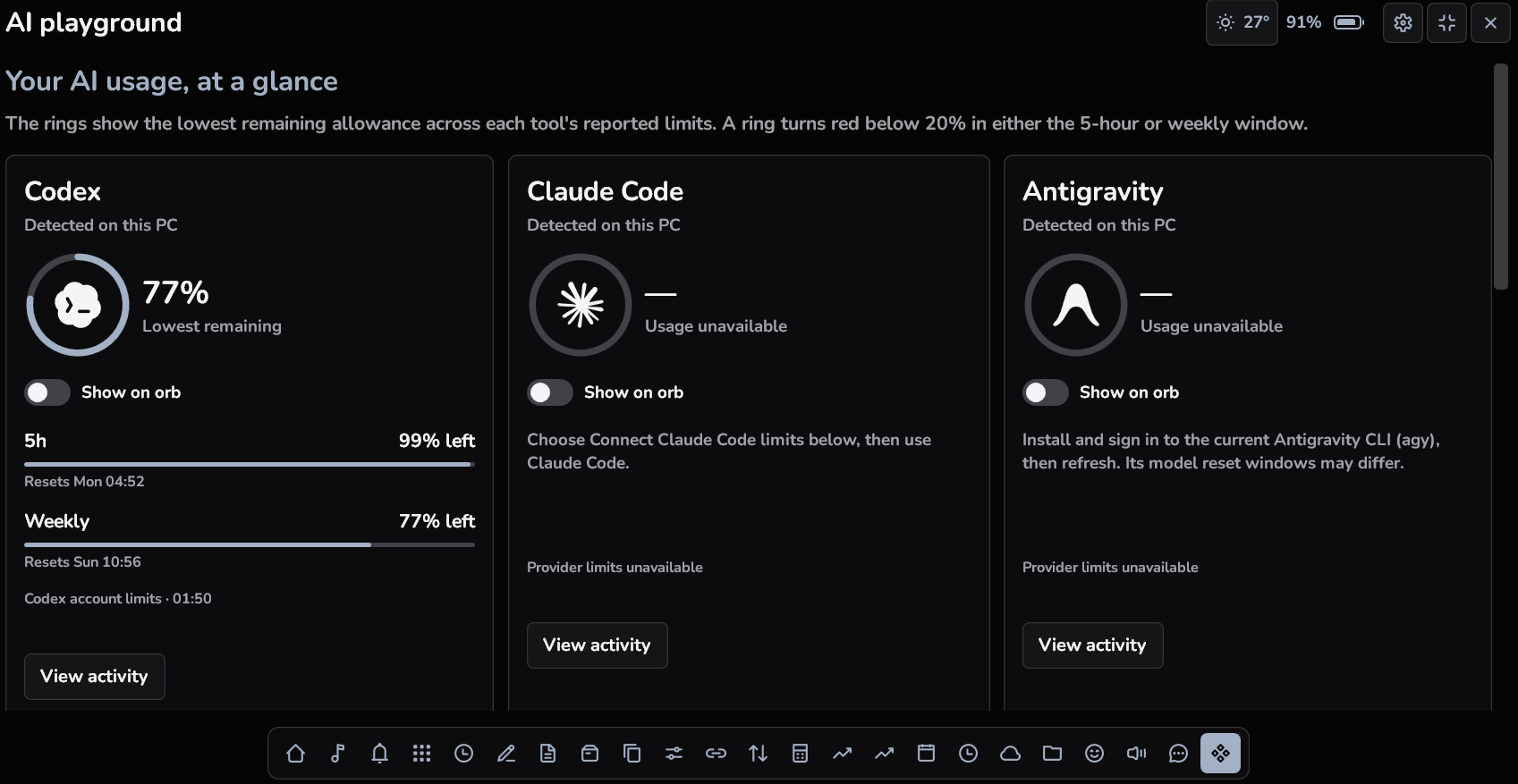
The overview ring uses the lowest remaining allowance across a tool’s active reported windows. It turns red below 20%. The panel still shows the individual windows, so you can see which one needs attention. Where a tool is missing or cannot supply a reading, the app says Not detected or Usage unavailable.
Show AI usage over your Windows apps
The useful part is keeping a reading nearby after the dashboard closes. Orby’s Show on orb option places the selected provider’s remaining allowance in the compact closed orb. You can position it near your work instead of leaving a full dashboard open.
- Open the app and choose AI Playground.
- Check that your installed coding tool is detected and has a current reading. Complete any connection instructions shown for that provider.
- Enable Show on orb on its card, then close the panel.
- To keep it above ordinary app windows, right click Orby’s system tray icon and enable Show over windows.
Only one activity owns the closed orb at a time. Selecting another provider, a timer or media replaces the previous selection. Fullscreen applications, Windows secure screens and your hide in fullscreen preference can affect whether the orb stays visible; it is not an overlay for every possible screen.
Understanding the readings
- Remaining allowance: shown when the provider reports it. Some providers need a local connection step or a compatible signed in CLI.
- Local activity: saved session counters can show a different view of usage. They are not billing totals or remaining quota; unsupported formats, remote sessions and WSL activity may be missing.
- Freshness: the compact display refreshes periodically, rather than tracking every request instantly. Missing, stale or expired readings are not presented as fresh allowances.
- No extra quota: Orby displays information. It does not increase limits, replace an AI subscription or guarantee access to a particular model.
Provider formats and access can change. If a reading is unavailable, check the coding tool itself before relying on an estimate. Orby is independently made and is not an official product of OpenAI, Anthropic or Google.
More than an AI usage dashboard
The same desktop orb includes a Windows Pomodoro timer, countdown and stopwatch, a drink water reminder, notes and a scratchpad, supported media controls, weather, a file shelf and clipboard history. You can choose colours, fonts, orb size, click or hover expansion, and dark or light appearances.
Start with the tools you actually use. For a focused coding session, that might mean AI usage on the closed orb, a Pomodoro timer inside, and a quick note for the next task.
Before you try it
Orby is a Windows x64 app. Windows 11 is recommended; the installer accepts Windows 10 build 19041 or later. Read the requirements and limitations before buying. A license covers up to three active PCs. Direct editions exclude Windows notification mirroring.